


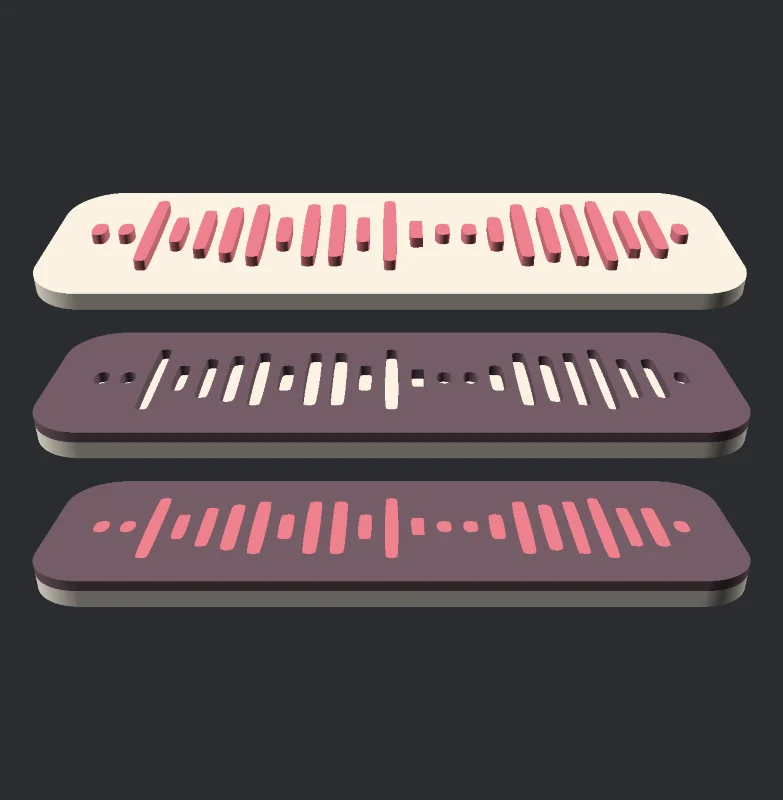


Mô hình 3D dao Karambit CS:GO
 Bybonzai000Likes716Downloads16.8K
Build another version of this model.

Notes:
I've also included the heart cutout template if you just want to use another program to add the code/some text.
The SVG file and the example STL files are obviously Rick Rolls if that's what you're here for :)
I've also uploaded a .zip file with more types

Corner & Border options:
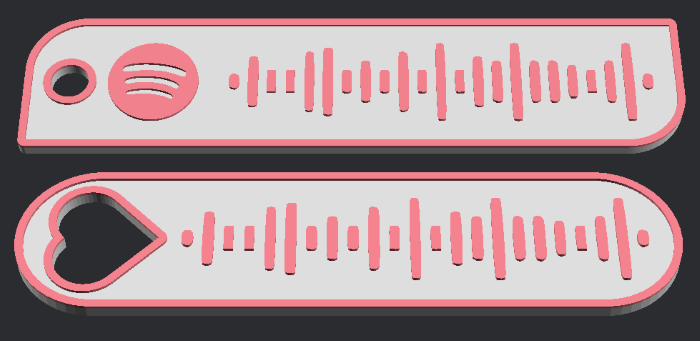
Optimize by line size:

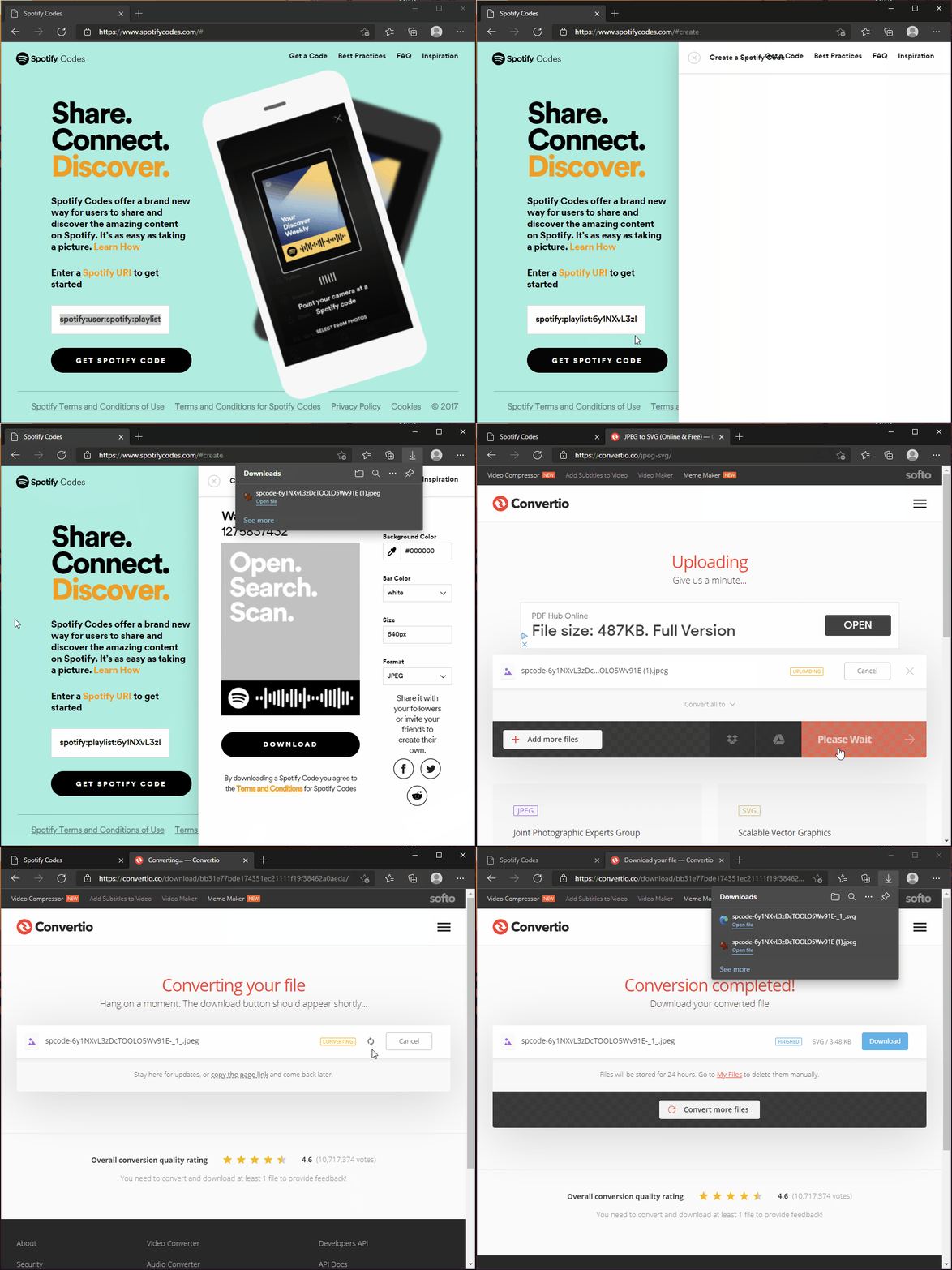
I'm aware you can download the code as a SVG file from the first site, but this will not be formatted properly for our uses.
Tip: Click the images to see a larger view
Note: If you want to inlay the code/icon, you'll need to export and save both 'Multi-Color Preview' and 'Multi-Color Code' under Basic Settings.


I suggest downloading icons from here - https://iconmonstr.com/
If you want to print a double sided tag, you can set Base Height to 0 and export the second side. Then just flip this over in the slicer
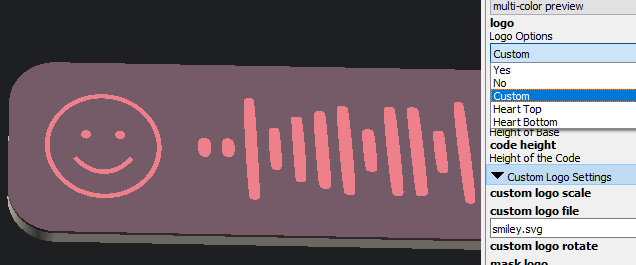
If you want a different color for the logo and code, you can enable Custom Logo and leave the Custom Logo File field empty. Then to get the logo, use text and just enter a space.
You can rotate the Heart Hole keyring option using the custom logo rotation settings

Bybonzai000Likes716Downloads16.8K

 ByJasonMastersLikes52Downloads529

 ByDC_8576Likes454Downloads1.8K

 Byjorge-cano-gorrachateguiLikes0Downloads405

 ByFotisMintLikes340Downloads2.5K

 ByWoowConcept_3626705Likes9Downloads87

 Bypokon_nurdspaceLikes429Downloads1.8K

 Bysuspicious-scoobyLikes0Downloads155

 BydaklLikes0Downloads135

 ByFranticwareLikes0Downloads119

 Bypapyskull_3946746Likes152Downloads500

 BybobmakesLikes23Downloads106