



Bộ sưu tập 11 nhân vật mô hình Mecca Chameleon in 3D vui nhộn
 ByZED4EverLikes313Downloads5.2K
Build another version of this model.
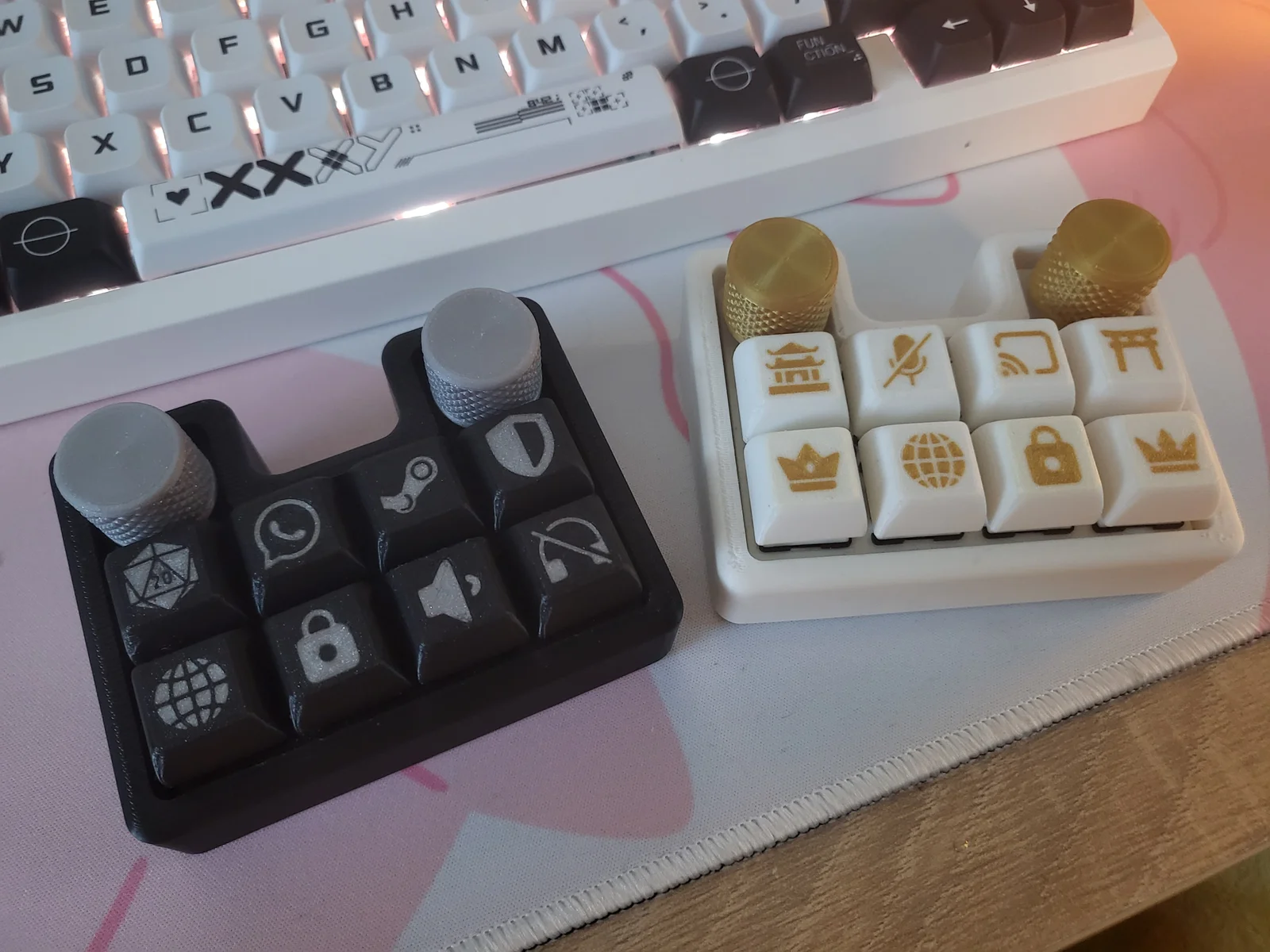
I added the icons in OrcaSlicer and because of this I can only export this as a 3MF file that is compatible with Bambu Studio/OrcaSlicer. I'm sorry :(
---------------------
I uploaded profiles for a single blank keycap and all icon keycaps together for a 0.4mm nozzle and a 0.2mm nozzle.
I highly recommend printing this with a 0.2mm nozzle!
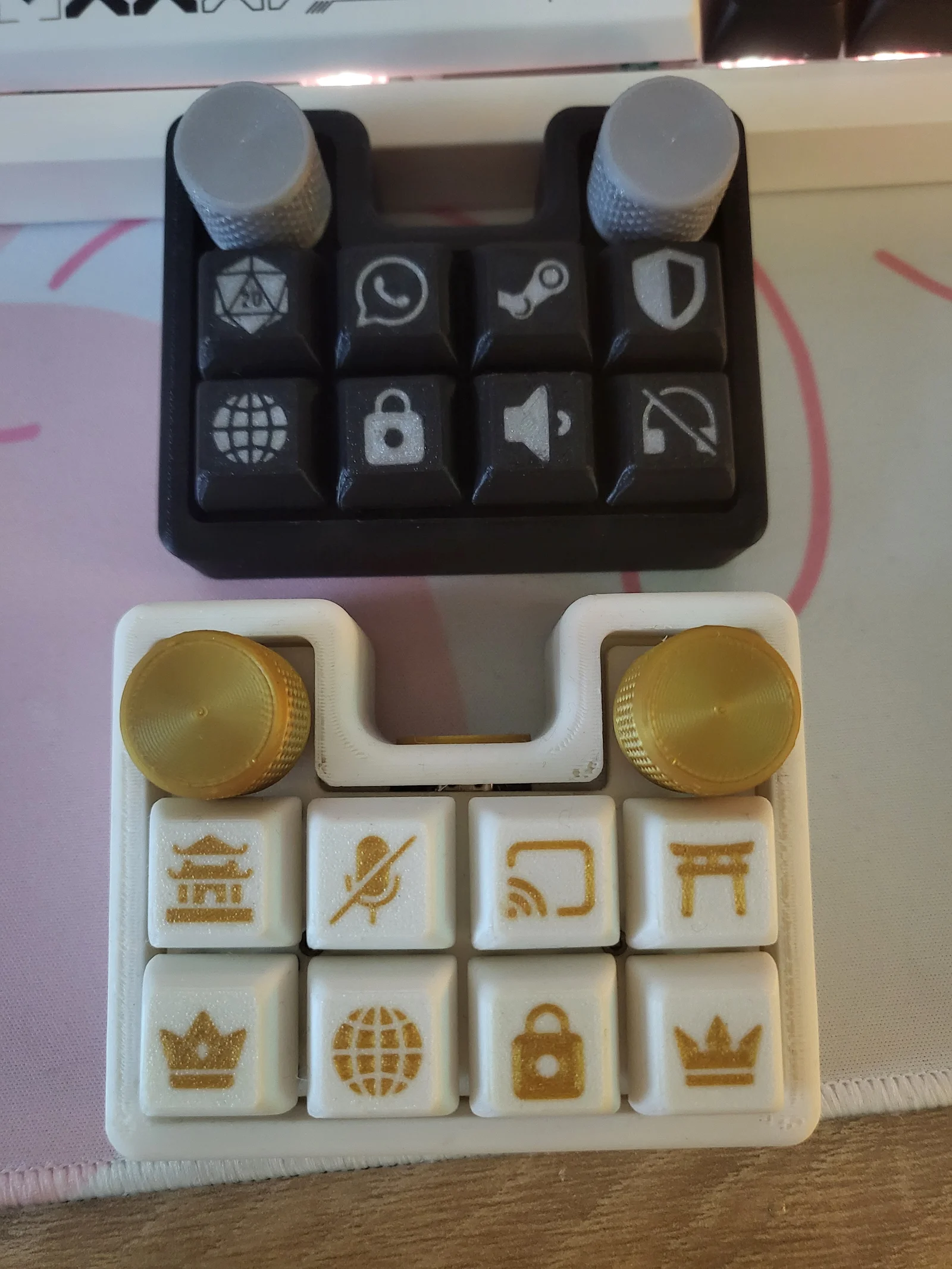
I did print a few of these keycaps with a 0.4mm nozzle for test purposes and they did work (you can see these in the third picture) but I can't guarantee that every design will print well (for example the D20 most likely wouldn't work).
In the slicer the icons only show after slicing and not in the preview. But every keycap should have a name in the object tab.
Easiest way tro add your own icons (with OrcaSlicer):
These are the SVG settings I used for the keycaps as a reference.
Most Icons are from here: https://www.discotools.xyz/de/icons-editor
And this is the 3D printed Macropad in the picture: https://scottokeebs.com/blogs/macropads/scottodeck-handwired-macropad
ByZED4EverLikes313Downloads5.2K

 ByBasementLABLikes888Downloads1.5K

 Bydan-sabauLikes0Downloads2.6K

 ByleonicLikes0Downloads1.4K

 ByfifindrLikes500Downloads4K

 BymoonyxLikes0Downloads701

 ByVC_DesignLikes679Downloads3.6K

 ByDan Schwartz SchwartzLikes744Downloads3.4K

 Byvc-designLikes0Downloads3.2K

 Bythorin-oakenshieldLikes0Downloads538

 Bytorii-creative-studioLikes0Downloads455

 ByKNIN_CustomLikes112Downloads440