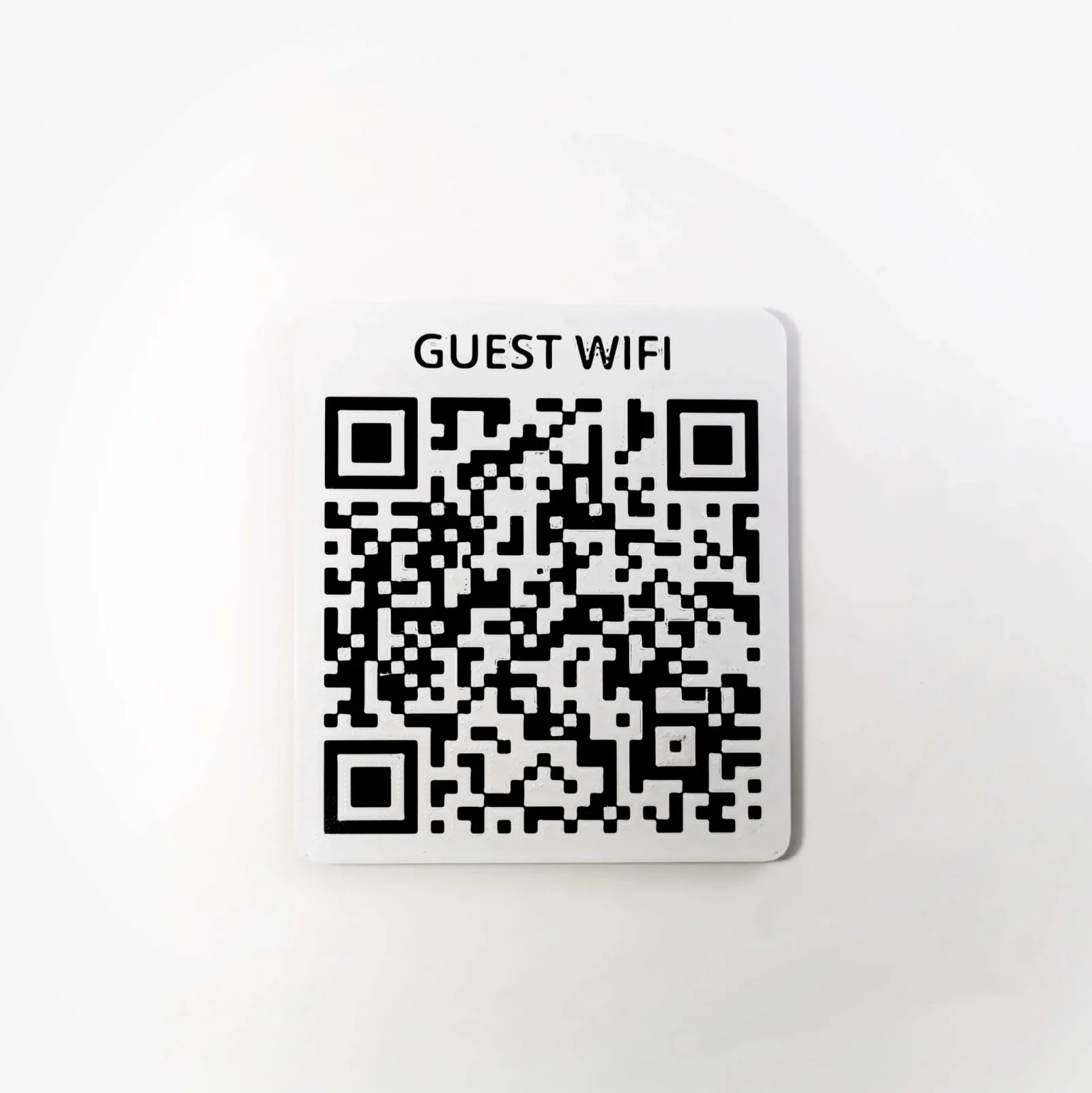
Update #1: I updated the models to work better with the new method, and add new stand model.
I tried to make the description and the solution in such a way that it could be done easily, without special program, and knowledge.
Color printing is easy with Z layer height change.
The model is similar in width and rounding to the spotify code models found here: https://www.prusaprinters.org/prints/62809-spotify-code-wall-ornament-with-custom-code , and they look good together.
New Method:
Required PrusaSlicer 2.7.0-alpha1 or later
A thousand thanks to Prusa Team and Community that since 2.7 version we can easily use svgs in the slicer as modifiers, negative volume, etc., a very useful function.
Generate QR Code
- Open this page : https://observablehq.com/@johnboiles/wifi-qr-code-svg-generator
- Enter the ssid of your wifi network, and password.
- Select the type of encryption and whether the network is hidden.
- Inset from the cutout path and the QR code : 0 mm
- Make sure that the generated qr code is working properly.
- Download the Svgfile.
Preparing for 3D printing.
- Open PrusaSlicer of course.=)
- Select the base model you want, depending on whether you want to create it in two or three colors and with text.
- Right-click the base model. Add Negativ Volume → Load and select the Downloaded SVG
- SVG Settings:
- Depth:1.0mm
- Use surface:Yes
- Set the desired size and position of the qr code on the model.
- Slice it up with the colors and settings you need.
- Once again, make sure you that working QR code.
- And that's all, Happy Printing. =)
Old Method:
//Generate QR Code
- Open this page :https://observablehq.com/@johnboiles/wifi-qr-code-svg-generator
- Enter the ssid of your wifi network, and password.
- Select the type of encryption and whether the network is hidden.
- You do not need to modify other settings.
- Make sure that the generated qr code is working properly.
- Download the Svgfile.
Code model preparation for Tinkercad
- Login, or registration on the free Tinkercad atwww.tinkercad.com
- Import the Svgfile.
- Don't modify the Scale
- You'll see a big cube with the code in it, you don't have to do anything with it, just export it.
- Export the file in Stl format
Preparing for 3D printing.
- Open PrusaSlicer of course.=)
- Select the base model you want, depending on whether you want to create it in two or three colors and with text.
- Right-click the base model. Add Part → Load and select the QR Code Stl file previously downloaded from the Tinkercad.
- First, repair the model with the Netfabb.
- Once the file is displayed it will not be the correct size, but this can be easily modified
- Select the added stlt file from the drop-down on the right side of the main file
- Then open the small padlock on the part manipulation tab and set the Z Size of the added model to 3mm. X and Y size to 100mm.
- Click the apperas small icon on the right (Drop to Bed)
- Slice it up with the colors and settings you need.
- Once again, make sure you that working QR code.
- Happy Printing. =)//
Print Settings
- Nozzle: 0.4mm
- Layerheight: 0.20mm
- For a nicer pattern: Change the Lift Z to 0.1
- Detect thin walls:On




 ByCodyMeyer_2545340Likes163Downloads719
 ByDrewmundLikes833Downloads4.6K
 ByFastRaccoon_718321Likes461Downloads1.5K
 Bykallekubinsk_3569049Likes37Downloads182
 Byr_squared_1123188Likes89Downloads192
 ByMrCoolGaming_2947996Likes47Downloads170
 Bybychr1s_568275Likes243Downloads183
 ByvexanixLikes168Downloads1.3K
 ByTomYumLikes33Downloads154
 ByCederbLikes32Downloads176
 ByIvoLikes196Downloads1.1K
 Bynonoobybut_3307010Likes364Downloads1K