
F3D
Hộp Token Nam Châm Parametric để Sắp Xếp Board Game 1

2 images

Board Game

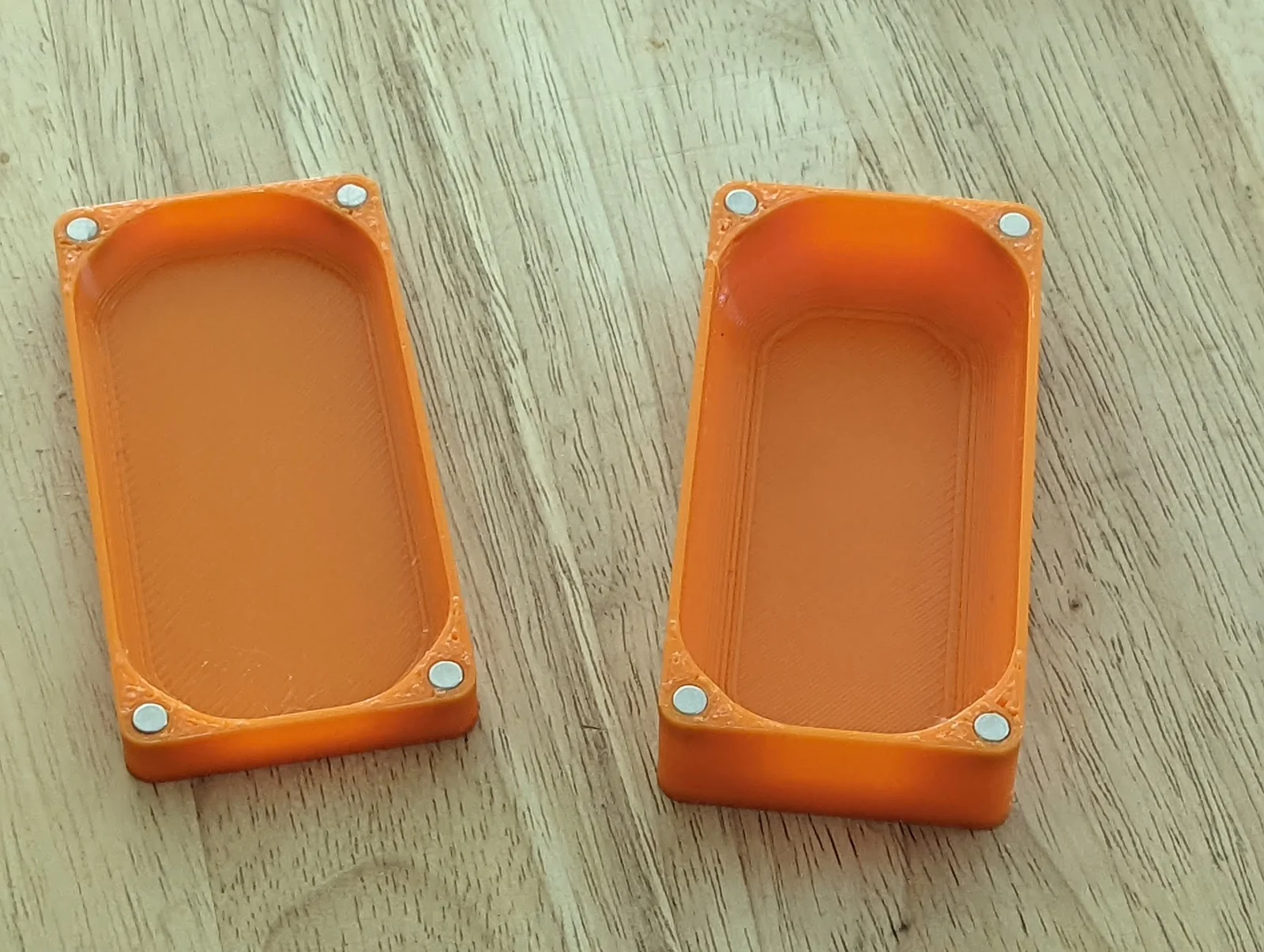
Hộp Token Nam Châm Parametric để Sắp Xếp Board Game

By Gbutton_126715

Downloads
138
Likes
48
Views
1,602

Files 1 244.6 KB

  • parametric_token_boxes_v2_1778186359.f3dF3D · 244.6 KB

Make a variant with AI

Build another version of this model.

Open Studio

Details

Model ID
#376727
Category
Board Game
Published

Description

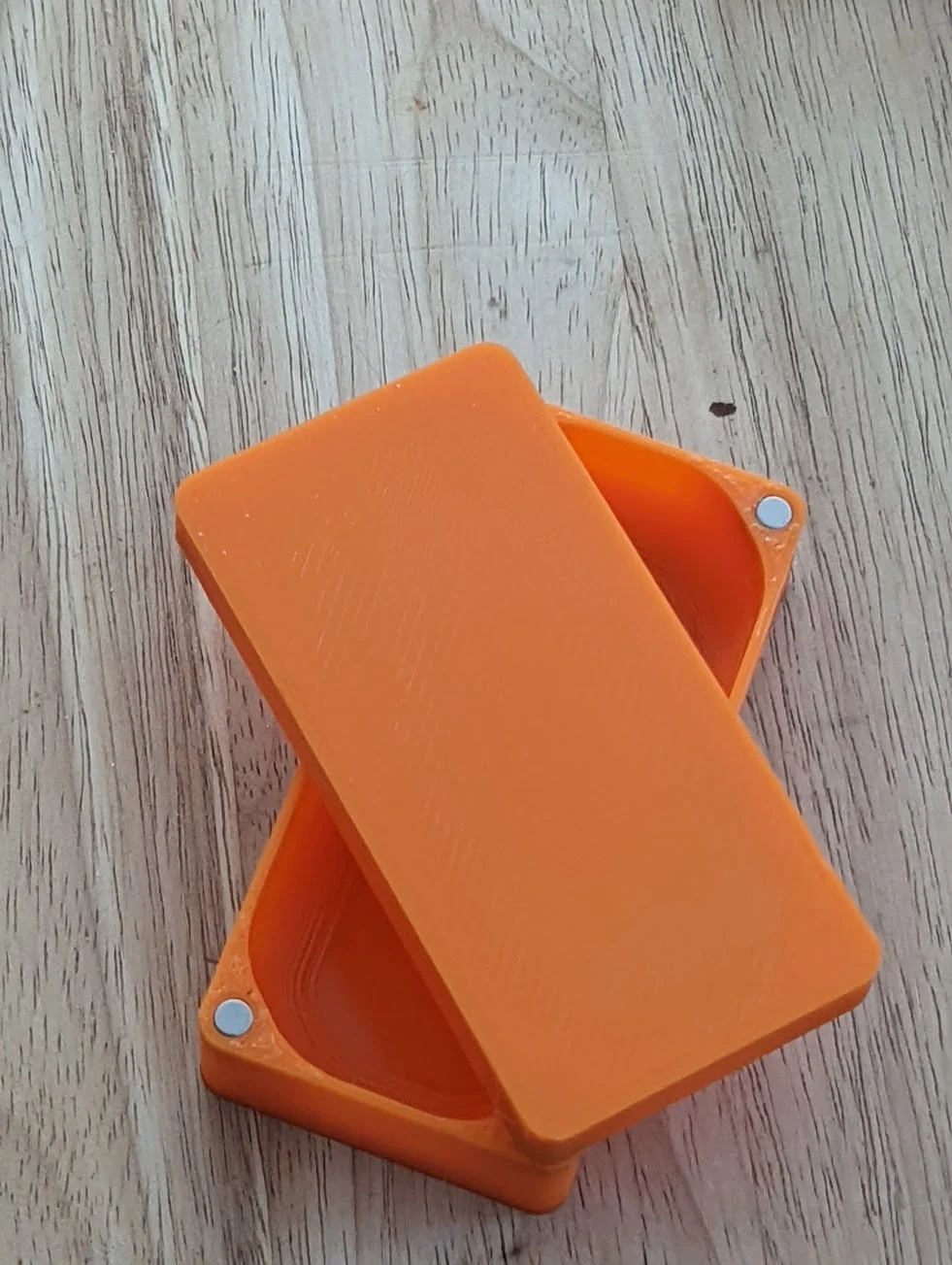
This is a parametric box that's designed to help you create custom storage solutions for your board games - especially the more obscure ones. 

Please leave a comment if there are other box types you would like. 

Steps:

  1. Download and install fusion 360 personal, make an autodesk account, and login. https://www.autodesk.com/products/fusion-360/personal
  2. Download the file attached to this project, and open it in 360.
  3. In fusion, navigate to MODIFY > Change Parameters
  4. In the parameter window, change the expressions to match your desired proportions
  5. The parameters are:
    1. magnetDia - the diameter of the magnet you will be using. I recommend to use and 5mmx3mm and to leave all the magnet parameters alone.
    2. length - how long (in mm) the box will be on the Y axis
    3. width - how long (in mm) the box will be on the X axis
    4. baseHeight - how tall the box will be on the Z axis
    5. lid height - how tall the lid of the box will be. I usually use shorter lids, but have used long lids in games like Wingspan, where I want all the eggs in one box, but use the lid and base as containers I can spread around the table.
    6. thickness - thickness of the walls. I recommend making this a multiple of you nozzle size. I use a 0.8mm nozzle, so I make my walls 1.6mm to get two layers and a much quicker print.
    7. magnetSpace - the amount of room around the magnet. tweaking this can help with gluing.
    8. magnetHeight - the height of the magnet you'll be using.
  6. When you have set your parameters, click ok.
  7. On the left side of the screen, you'll see a folder called Bodies. Open that folder and right click Box Base > Save as Mesh.
  8. Click OK in the popup.
  9. Repeat for Box Lid Mag
  10. Open the meshes in your slicer, slice, and print.

Please leave a comment if you have questions.

Read more Show less

Print spec

Formats
f3d
Model files
1
Total size
244.6 KB
Largest file
244.6 KB

0 comments

See all