



Còi Tàu Hơi Nước Mini
 ByfifindrLikes500Downloads4K
Build another version of this model.
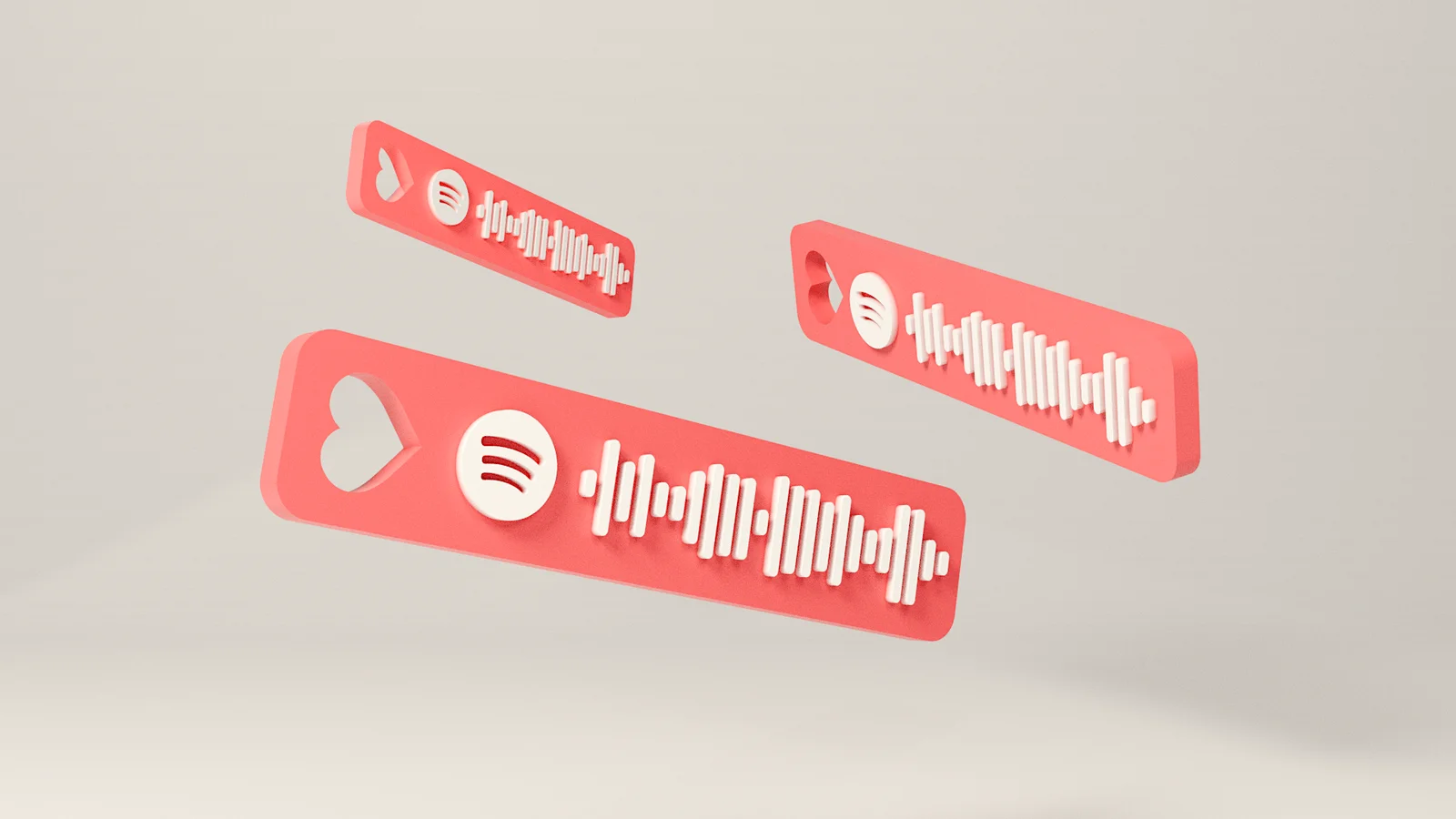
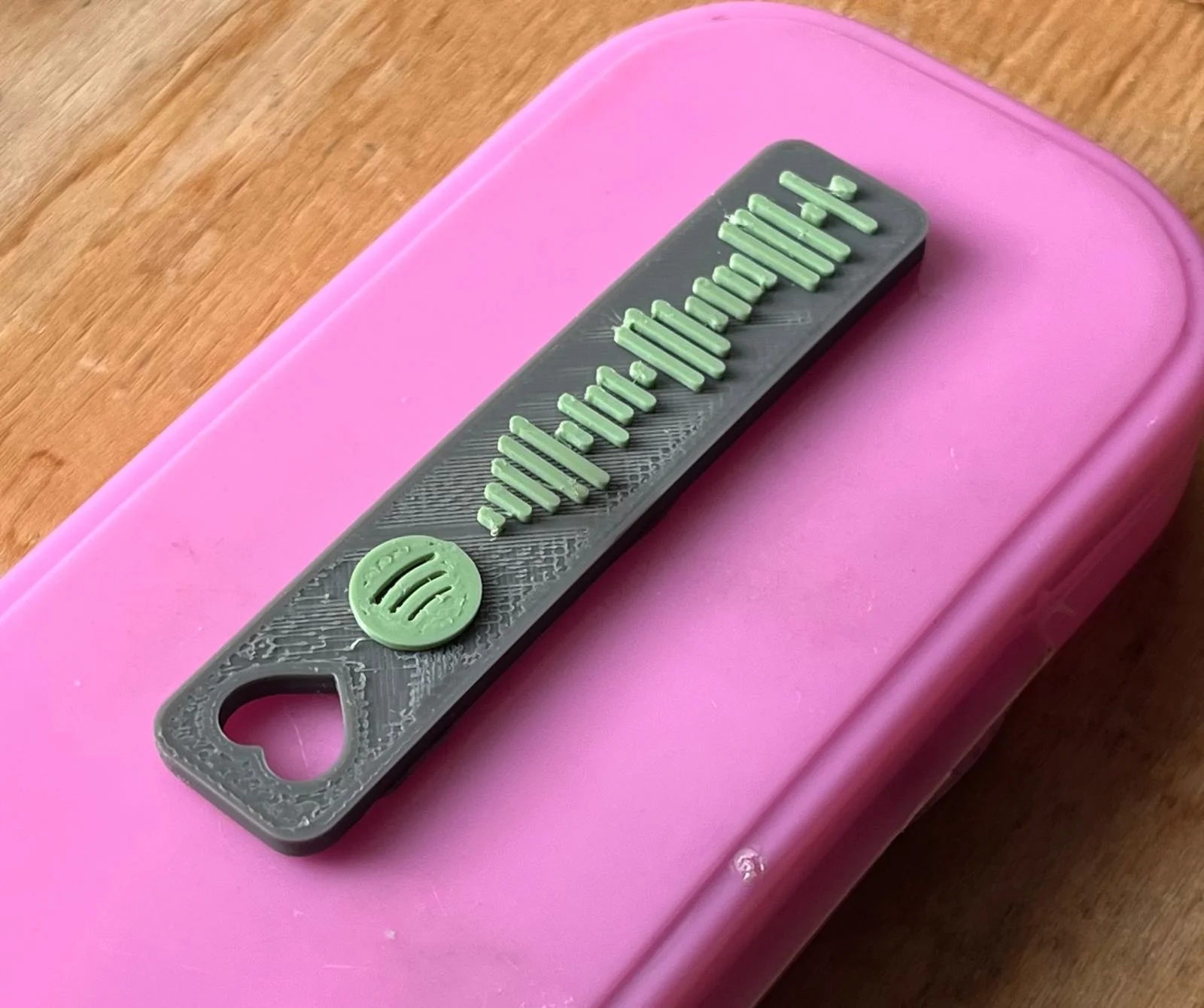
Do you wish to showcase your musical taste or share your favorite Spotify tracks in a unique way? Our project introduces a Python script that transforms any Spotify song or album URL into a bespoke 3D-printable keychain, complete with a scannable Spotify code. Simply input your chosen Spotify URL, and our script will do the rest, creating a customized keychain design that resonates with your musical identity.
You can download the script either from the attached files or clone it from our GitHub repository at https://github.com/ricdigi/spotify_keychain_3D_model. Ensure you download all necessary files.
Set up a virtual environment in the project folder. We recommend using Python version 3.9.6, which has been tested with our code. If you haven't installed this Python version, please do so first. Open a terminal window in the project folder and execute:
virtualenv env -p python3.9.6
Activate the newly created environment:
source env/bin/activate
You should now see (env) preceding your terminal command prompt, indicating the environment is active.
Install the required Python packages:
pip install -r requirements.txt
Execute main.py:
python main.py
When prompted, paste the desired Spotify URL (artist, album, song, or playlist). The script will then generate an STL file of the custom keychain in the project folder called: model.stl.
Note: The first execution may take a few seconds to prompt for the link, so please be patient.
You can use whatever material and dimension you prefer, but be sure to print the model in two different colors for the base and the barcode. You can achieve this with both a single material printer, by scheduling a mid-print filament change, or on a multi-material printer.
ByfifindrLikes500Downloads4K

 ByMAFIXMAFIX_337316Likes130Downloads382

 ByZED4EverLikes313Downloads5.2K

 ByVC_DesignLikes679Downloads3.6K

 ByDan Schwartz SchwartzLikes744Downloads3.4K

 Byvc-designLikes0Downloads3.2K

 ByUpcrid3D_1585693Likes808Downloads2.1K

 ByWilko_SLOLikes935Downloads2K

 Bychubbs8697_2027893Likes585Downloads1.7K

 Byquibeck_3353173Likes965Downloads1.9K

 BySeppoTakaloLikes960Downloads1.9K

 ByRobertoGalloc_356815Likes549Downloads1.8K