



Steam Machine Companion Cube / Vỏ đựng Weighted Storage Cube
 ByJaronLikes310Downloads1K
Build another version of this model.
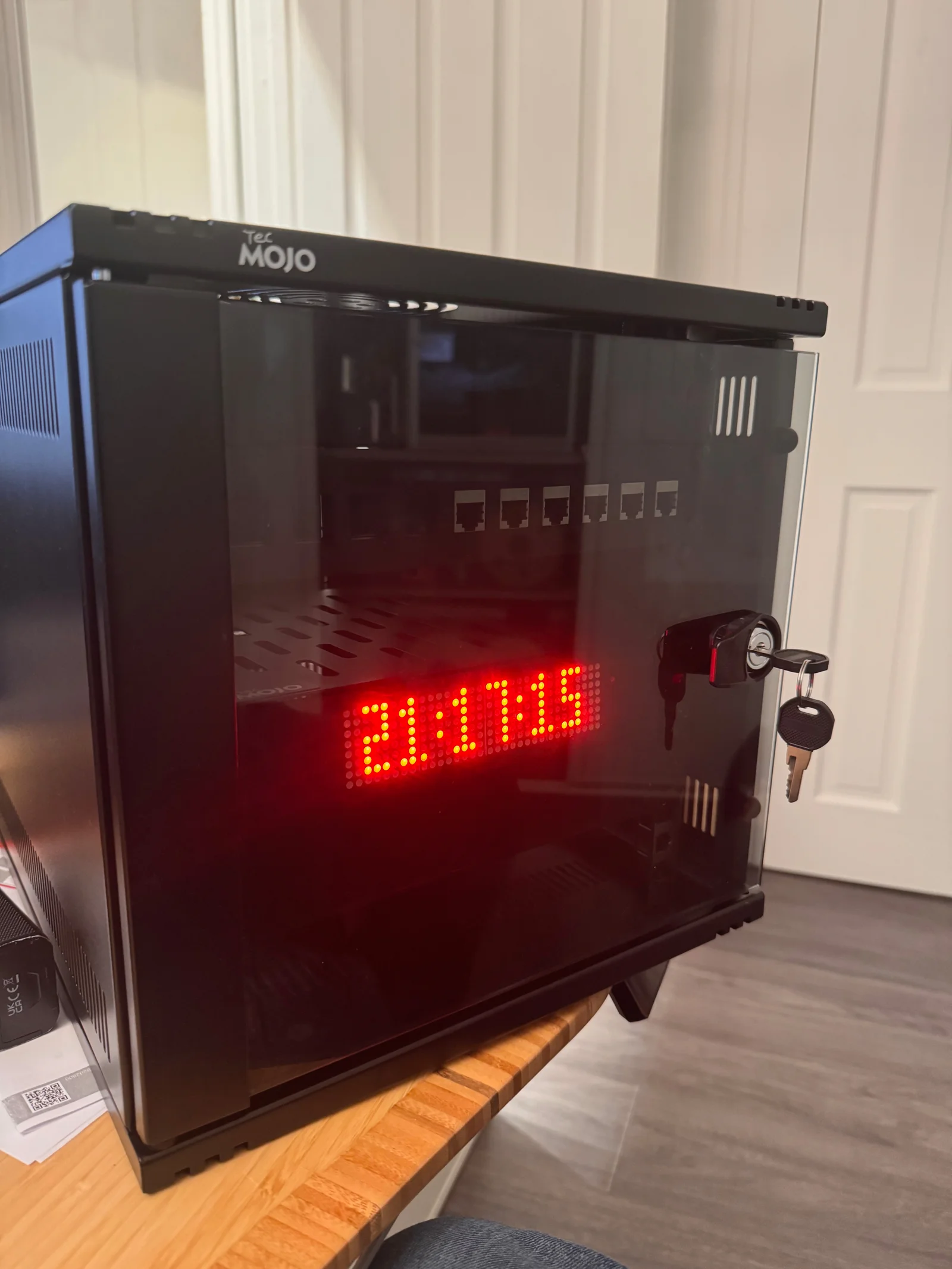
A 3D printed 10" rack compatible mount for a Raspberry Pi and cascaded MAX7219 8x8 LED modules to display the current time via NTP.
I fell down a horology rabbit hole over the 2025 Christmas period and ended up setting up two GPS disciplined NTP servers in my home lab. I wanted a way to visualise the time in my mini rack and after some research, discovered there didn't seem to be any commercial mini rack offerings and the commercial 19" rack products were prohibitively expensive (and I didn't have a 19" rack). Hence this 10" mini rack clock.
1x Raspberry Pi (version/generation shouldn't matter, it has very low compute requirements)
1x 4x1 MAX7219 8x8 LED display. Available from Amazon UK here.
1x 5-wide jumper wires, included in the Amazon link above.
4x M2.5 threaded inserts.
4x M2.5 screws.
Both 3D printed parts included in this model
The clock is driven by a Raspberry Pi 4 (its what I had laying around) and synchronises its time via NTP/Chrony from my two NTP servers. You could equally use servers from the public NTP Pool.
There is a small python program which can be downloaded/cloned from here which is used to get the time from the Raspberry Pi and display it on the LEDs.
Acquire/Print everything in the BOM.
Install the threaded inserts into the printed parts to allow you to mount the Raspberry Pi
Install your base OS onto the Raspberry Pi (DietPi is my preference).
Make sure the Raspberry Pi is correctly syncing time from NTP date -u. Optionally, install something like ntpd/chrony and specify your time sources manually.
Wire up the Pi to the 4x1 MAX7219 module as described here.
Clone the Github Repo onto the Raspberry Pi.
Execute the setup steps.
Run python ntpclock.py and make sure the correct time is being displayed on the display.
Assuming that worked, mount the hardware into the 3D printed parts, slide the locking part over the free end of the display to secure it into place.
follow the instructions here to get systemd to autostart the application at boot and restart if it crashes.
Mount it in your mini rack.
Profit.
The main rack mounted part should be printed face down. If your printer struggles with bridging then you may want to add some supports on the captive end of the LED module mount.
I printed with a 0.6mm nozzle @ 0.3mm layer height. Nothing fancy.
The model I created is designed specifically to fit the module I linked in the BOM. If you get a different model the dimensions may differ slightly. Here's a link to the Public Onshape document if you need to tweak anything.
Due to the print orientation, the chance of your threaded inserts fitting nicely is a gamble. I recommend drilling out the holes prior to installing the inserts for easier/straighter installation.
You can use different sized threaded inserts/screws, but you will need to change the model in Onshape to make them fit.
I am not a professional CAD designed. There may be better ways to achieve much of what I was able to do in Onshape in more elegant ways.
I currently power the module via USB-C, I imagine you could install a POE hat on the Pi to provide power and it still fit in the 1U space constraints if required.
Its too bright/dim - The brightness can be controlled by passing -b 0-255 argument to the ntpclock application to reduce/increase brightness as required.
ByJaronLikes310Downloads1K

 Byw3rN42Likes127Downloads930

 ByTomDDLikes89Downloads572

 ByJwidessLikes34Downloads372

 ByBroBuilds3D_4455044Likes32Downloads448

 ByJMack_104264Likes12Downloads87

 ByckthLikes148Downloads2.4K

 ByVikingptty_1943738Likes50Downloads227

 ByBrokentooth_designsLikes30Downloads222

 Byidcrook_995198Likes3Downloads53

 ByJKMCZLikes11Downloads173

 Byjodinskylab_3390035Likes144Downloads161