

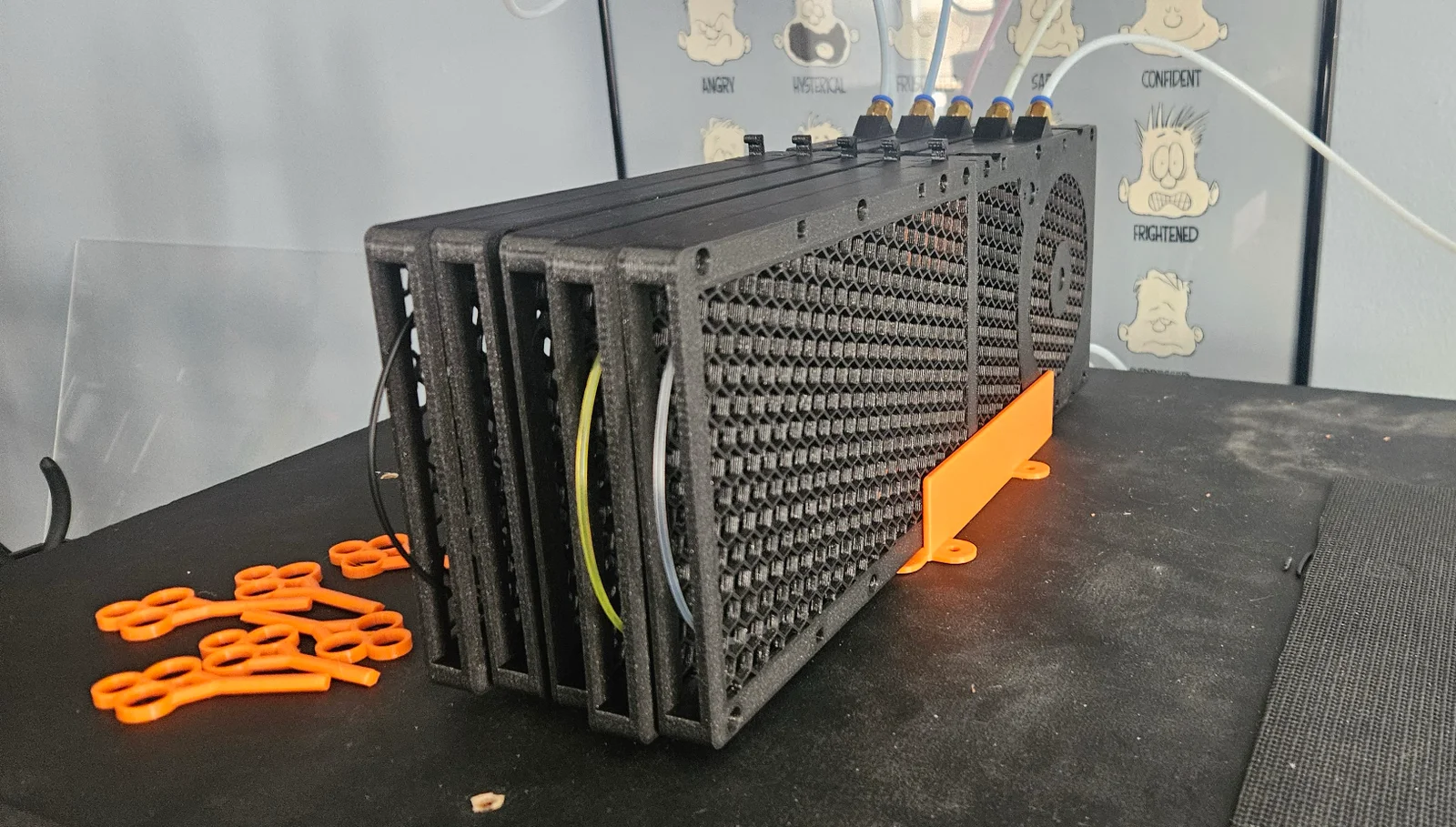


Kẹp giữ sợi Filament
 Bytinx_1344834Likes1.2KDownloads6K
Build another version of this model.
Most buffers are a 180 or 270 degree setup where mine is more like a 90/135 degree setup. This allows flexibility for placement of the spools and MMU.
Load from the spool to the MMU without having to remove the pulley section. A loading gate with a locking key is part of the mechanism to provide this.
Features:
Simple to setup and use.
Simple assembly, no crazy directions needed.
Honeycomb print to reduce filament needed for each buffer. (Honeycomb is added by options through the Prusa Slicer.
Reliable, I have printed several multi-day prints with zero buffer issues. The print in the attached picture took approximately 1000 filament changes. When the MMU had a loading issue, I was able to resolve it without canceling the print or messing with the buffer. (See the troubleshooting section).
Can load from the spool to the MMU without opening/removing the buffer wheel.
Individual slots so you an make as many as you want.
It can be used horizontally or vertically depending on your setup. I created a base for both uses.
What you need per buffer:
1 Lower Panel
1 Lower Panel Cover
1 Upper Panel
1 Upper Panel Cover
1 Pulley Wheel
1 6200Z bearing
1 Pulley Washer
1 Filament loading gate
1 Filament gate locking key
14 M3 x 8 or M3 x 10 self tapping screws OR (14) M3 x 12 screws with hex nuts. (I prefer the self tapping Phillips head screws as they are easier to asseble with)
2 PC-M6 PTFE tube connectors
PTFE tubing from your spool to the buffer
PTFE tubing from your buffer to your MMU
DO NOT PRINT the "Overlay" files. Those are used by the Prusa Slicer to create the Honeycomb pattern on the panels.
Printing:
I recommend printing in PETG with Gyroid infill at 15%.
0.2 layer is good, no need to go less.
No supports are needed.
Printing in white will show the loaded filament color better, but use whatever color you like.
I suggest printing using the provided 3mf files. Those files have all the settings to make the panels with the Honeycomb pattern.
Assembly: (Reference attached pictures)
Attach a 6200Z bearing to the pulley wheel.
Attach the Filament Gate, Pulley Wheel, and washer to the Lower Panel
Attach the Lower Panel Cover to the Lower Panel using M3 screws
Assemble the Upper Panel using 1 Upper Panel and Cover using M3 screws
Attach the Lower Panel to Upper Panel using M3 screws
Screw on the 2 PTFE connectors
Connect a PTFE tube to the spool
Connect a PTFE tube to the MMU
Buffer Stand:
Choose the vertical or horizontal base.
Slide your buffers into the base to hold them in place.
If you choose the horizontal base, you'll need to connect the PTFE tubing through the hole in the base.
Loading Filament:
The angled PTFE tube connection on the long side of the buffer is your filament input from the spool.
The straight PTFE tube connection on the short side of the buffer is your output to the MMU.
Make sure the gate is in the closed position around the pulley wheel. Normally gravity will take care of this for you. If not, you can insert the Filament Gate Key in the upper slot to lower the gate.
IMPORTANT: Insert the Filament Gate Key in the lower slot (closer to the Pulley Wheel) to lock the filament gate in place. With the gate locked in place, the filament will travel around the wheel to the output PTFE tube.
Load your filament from the spool to the MMU.
The filament should travel easily into the buffer, around the wheel, and out to the MMU. To ensure smooth loading, check that your MMU is properly setup with PTFE tubing heading straight into the MMU. When I was testing this, the MMU was the hang up each time. Once I adjusted the PTFE tubing in the entrance to the MMU, then everything worked smoothly.
IMPORTANT: AFTER the filament is loaded to the MMU, REMOVE the filament gate key. In the unlocked position, the gate will open to allow the buffer to fill when the MMU unloads filament.
Unloading Filament:
Testing:
Troubleshooting:
While filament is in the buffer, you cannot close or lock the filament gate.
During loading, the filament should follow the gate and output to the PTFE tube to the MMU. If the filament is getting stuck along the path, pushing harder may push the filament outside of the gate/wheel path. You need to check your path after the buffer to ensure a smooth path to the MMU.
If your MMU has an issue during the print, and you need to "play" with the filament to push it forward. I recommend sliding the PTFE tubing out of the output PTFE connection and accessing the filament there.
Bytinx_1344834Likes1.2KDownloads6K

 ByreddLikes216Downloads2.1K

 ByJasonOlliff_519145Likes241Downloads2K

 Byarhi_585078Likes64Downloads535

 ByltloweLikes26Downloads118

 ByHanzo3dLikes155Downloads410

 ByGeek5DLikes147Downloads480

 ByBrokentooth_designsLikes23Downloads401

 By3DSourcererLikes48Downloads372

 ByWyomingWolf_261196Likes52Downloads422

 Bytopronix_2170418Likes41Downloads292

 ByBlackky98Likes25Downloads204