



Kẹp giữ sợi Filament
 Bytinx_1344834Likes1.2KDownloads6K
Build another version of this model.
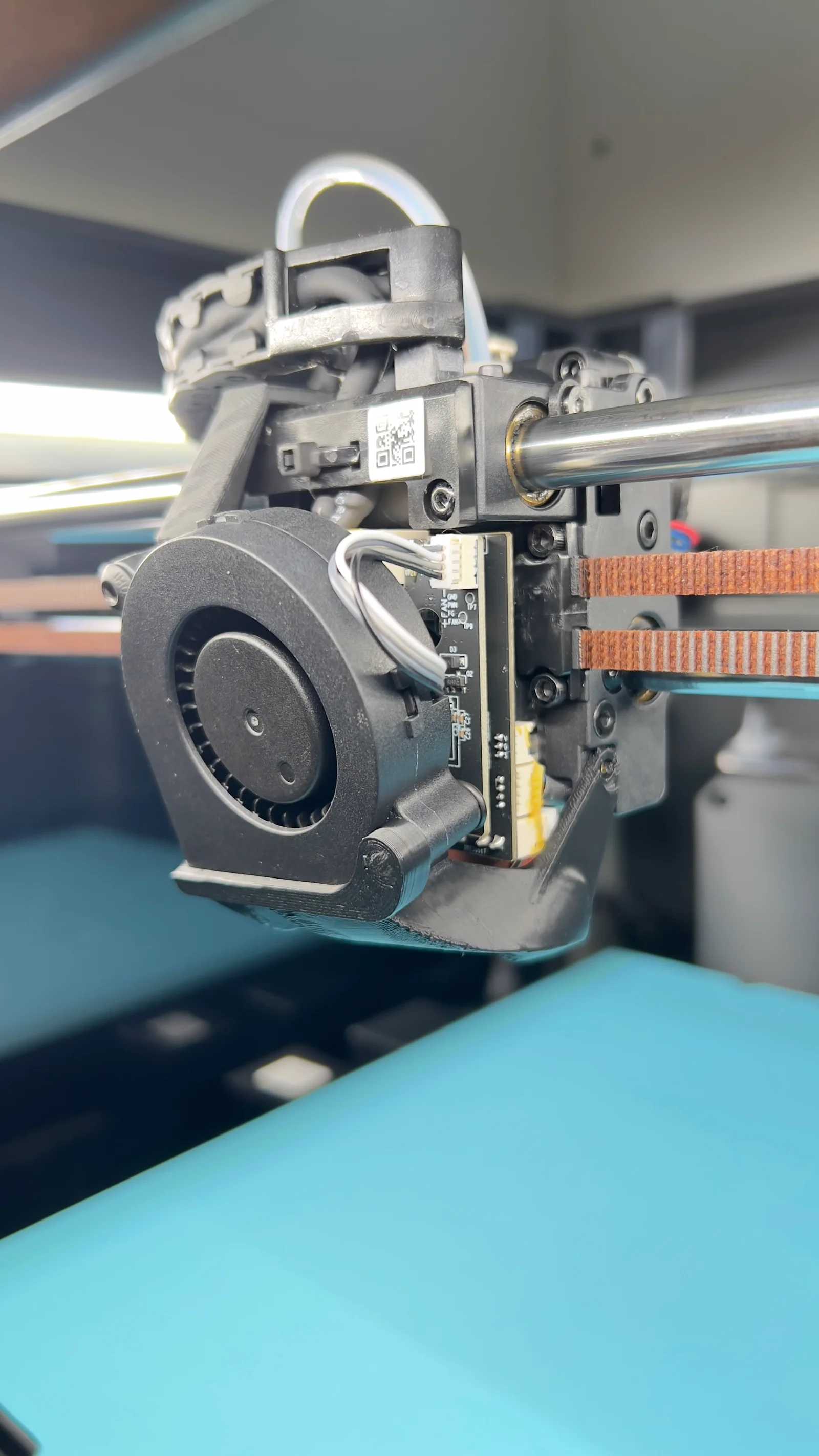
This toolhead air duct has undergone multiple iterations to maximize airflow while significantly reducing moving mass.
Key Benefits:
Massive Weight Savings: 30% lighter than the stock assembly (42g vs. 60g). This allows for higher acceleration and reduced ghosting.
Improved Acoustics: Subjectively quieter than the stock fan (official decibel testing pending).
Add-on Compatible: Fully compatible with the nozzle wiper mod (see photos).
Hardware Required:
Blower to Cover: 2x M4 x 16mm screws.
Side Screws: Reuse the 2x stock screws.
Fan Model: Designed for this Amazon Canada 5015 Blower (USA version is likely compatible but unconfirmed).
Material: ABS/ASA. PETG is probably going to warp.
⚠ Important Installation Notes:
Wiring Change: Since this fan is designed for the Bambu Lab X1C, you must swap the wire order on the connector to match the stock Creality 4020 pinout.
Fasteners: I highly recommend using a small amount of soft (blue) Loctite when reinstalling the small side screws to prevent them from vibrating loose.
Calibration: You must rerun your X and Y Input Shapers after installation to account for the weight change before you resume high-speed printing.
Since this 5015 blower is designed for the Bambu Lab X1C, the pinout does not match the Creality K1 Max. You must swap the wire order to avoid damage. TEST THE BLOWER BEFORE INSTALLING ON THE PRINTER!!
I am not responsible for any damage to your toolhead board or fan.
How to Swap Pins: To change the pins in the connector without cutting wires, I suggest watching this guide:
Note on Colors: The wire colors differ significantly between the stock Creality fan and the new 5015 fan. Refer to the table below for the function of each wire:
Function
Stock 4020 Blower
New 5015 Blower
Positive (+)
Red
Black
Negative (-)
Black
Bluish Gray
PWM (Signal)
Green
White
Tachometer
Yellow
Light Gray
To test the 5015 blower with a power supply, follow these steps:
Connect the Black wire to the Positive (+) terminal.
Connect the Bluish Gray wire to the Negative (-) terminal.
Leave the White (PWM) wire disconnected (the fan should run at 100% speed by default).
Check your pins! In the provided photos, the wire order may not be correct as they were taken during the testing phase. Always follow the wire functions listed above rather than the visual order in the test photos.
Connect the Black wire (+) and the Bluish Gray wire (-) to your power supply.
While the fan is running, briefly touch the White (PWM) wire to the Bluish Gray (Negative) wire.
Expected Result: The blower should stop spinning. This effectively "shorts" the signal to ground, simulating a 0% duty cycle.
Action: Repeat this "on and off" a few times to confirm the fan responds correctly to the signal change.
Perform the exact same test on your stock 4020 blower (using Red for positive, Black for negative, and Green for PWM).
Let me know if you’ve tried this yet and if it worked for you!
Bytinx_1344834Likes1.2KDownloads6K

 ByreddLikes216Downloads2.1K

 ByJasonOlliff_519145Likes241Downloads2K

 ByBrokentooth_designsLikes17Downloads142

 Byarhi_585078Likes64Downloads535

 ByHanzo3dLikes155Downloads410

 ByGeek5DLikes147Downloads480

 ByNadirLikes25Downloads110

 By3DSourcererLikes48Downloads372

 ByWyomingWolf_261196Likes52Downloads422

 Bytopronix_2170418Likes41Downloads292

 ByBlackky98Likes25Downloads204